
Home / Get started
Get started with CUBE
Install once, then go from a folder of videos to named behaviours.
Requirements
- Windows 10 or 11 (64-bit), an internet connection for the installation and about 15 GB of free disk space
- Nothing else: you do not need to install Python or Anaconda first, and no programming is needed
- An NVIDIA graphics card is strongly recommended for DeepLabCut pose tracking (Step 1). It is not needed for Steps 2 to 5
1. Install
Download
On the CUBE GitHub page choose Code → Download ZIP. Right-click the ZIP file and choose Extract All… (the installer does not work from inside the ZIP), and put the folder somewhere simple, for example a folder called CUBE directly on your C: drive.
Double-click
install_cube.batIt installs CUBE's own copy of Python 3.12 and every package CUBE needs: the analysis tools, DeepLabCut with PyTorch for pose tracking, and Anipose for 3D. It chooses the GPU or the CPU version automatically. The first time it downloads several GB and takes 10 to 30 minutes; leave the window open until it says CUBE is installed. It needs no administrator rights, and running it again repairs a damaged installation.
Start CUBE
Double-click the CUBE icon on your Desktop, or
Launch CUBE.batin the folder.
Windows SmartScreen may warn about the .bat file. Choose More info and then Run anyway. The scripts are plain text and can be opened in Notepad to read.
2. Check that it works
In CUBE choose Help → System check. It shows, for each step, what is installed and what is missing, whether your graphics card was found, and how to fix any problem. Copy report puts the text on the clipboard so you can send it when asking for help.
Steps 2 to 5 do not need DeepLabCut or a graphics card. If the report says no GPU available and your computer has no NVIDIA card, nothing is wrong: everything works and only Step 1 is slow. Already have DeepLabCut output files? Skip Step 1 and start at Step 2.
3. Launch
Use the Desktop icon or Launch CUBE.bat. Two of the steps also have their own launchers: Launch Analyser.bat (behaviour analyser, Step 5 only) and Launch Video Explorer.bat (cluster annotator, Step 4 only).
If something goes wrong
- The installer stops with a network message: run it again; it continues where it stopped. Some company networks block
pypi.org,conda.anaconda.orgordownload.pytorch.org. - CUBE says it has not been installed: run
install_cube.batagain. - CUBE closes with an error: double-click
Launch CUBE (console).batto read the message, and send it with the Copy report text from System check and theinstall_log.txtfile. - More fixes are in Troubleshooting.
Advanced: install from the command line
CUBE is developed and tested with Python 3.12.13. With any conda, from the CUBE folder:
conda env create -f environment.yml
conda activate CUBE
python -m pip install --no-deps -r requirements-lock.txt
python cube.py
--no-deps is needed because the lock file pins the exact tested package set (PyTorch with CUDA 13, DeepLabCut 3.0.0rc14, Anipose 0.8.0, numpy 2.4) and DeepLabCut’s own metadata asks for numpy<2. Without an NVIDIA GPU use environment-cpu.yml and requirements-lock-cpu.txt. python cube.py --check prints the system check without opening the window.
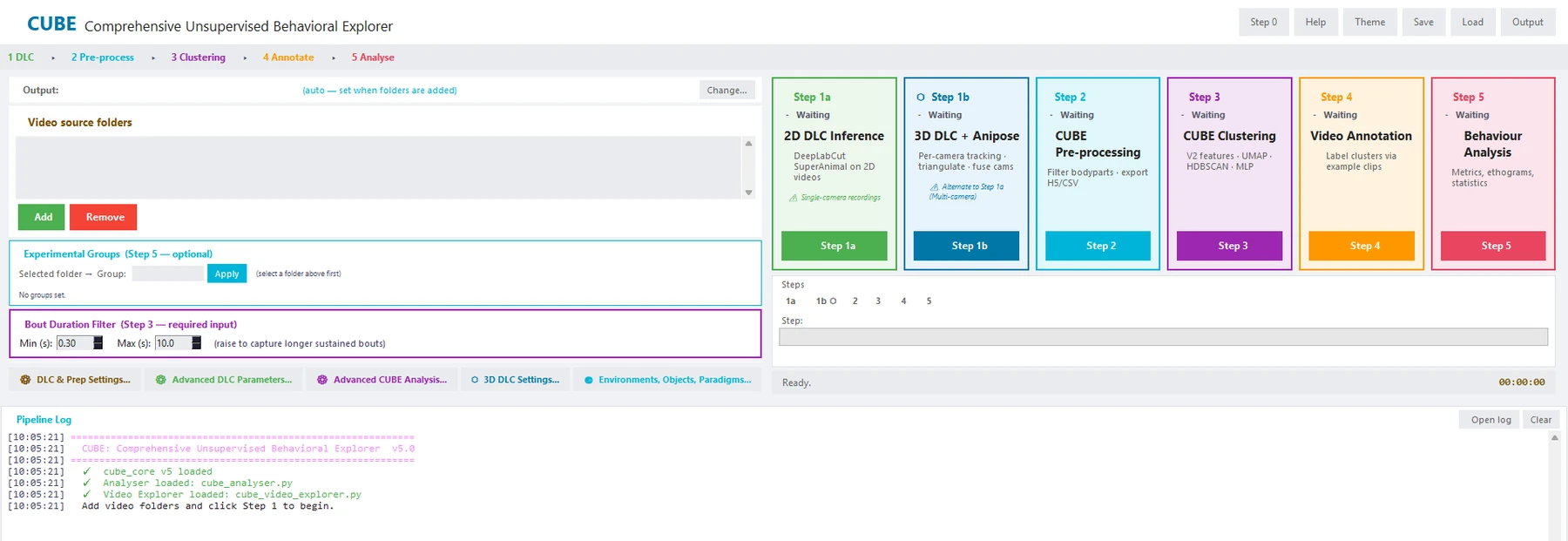
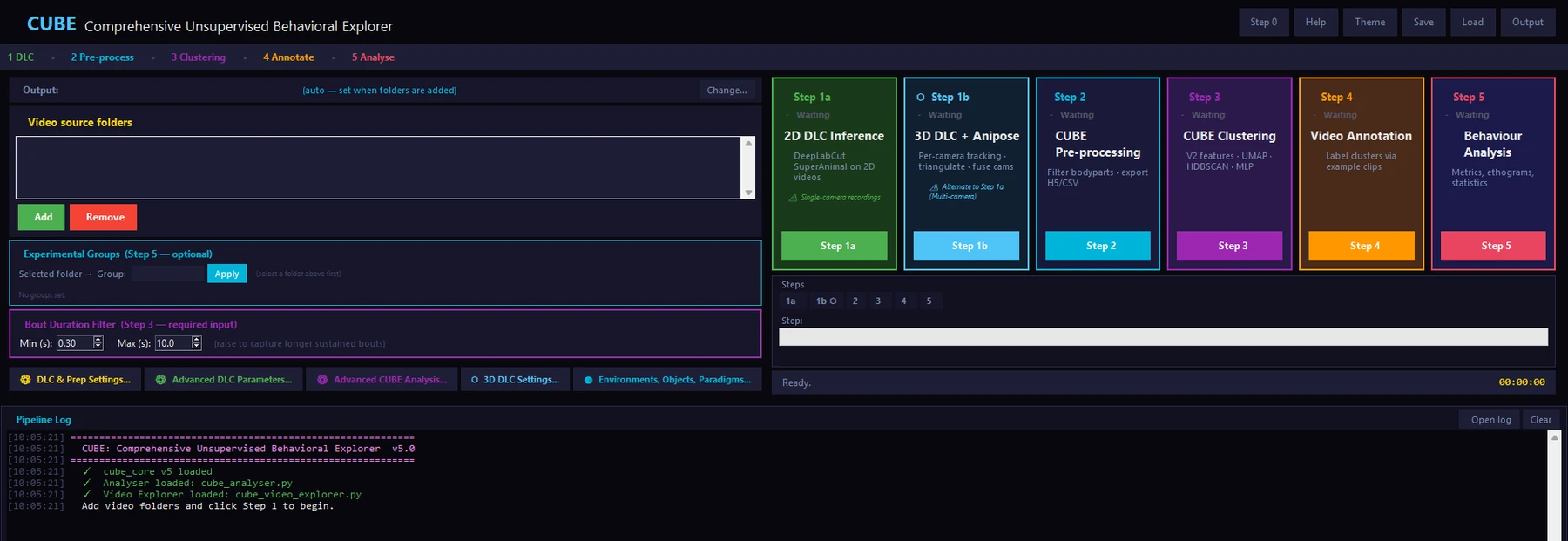
4. Your first run
Put your videos in one folder
Use .mp4, .avi or .mov files. If you recorded with a synchronised Bonsai rig, run the video corrector first (Step 0).
Track body points
Choose Step 1a for ordinary single-camera video or Step 1b for a calibrated multi-camera rig. If you already have DeepLabCut output files (H5 or CSV), skip straight to Step 2.
Pre-process and discover
Step 2 checks the tracking and keeps the well-tracked body points. Step 3 extracts features, runs UMAP and HDBSCAN, trains the classifier and smooths with a hidden Markov model. Defaults work for most datasets; the user guide explains every setting.
Name the clusters
Step 4 plays example clips for each cluster. Watch a few, give the cluster a name, and move on.
Analyse
Step 5 opens the analyser: ethograms, group comparisons, transitions and figures you can export. Your session is saved after every step; click Load and choose the session file to continue later.