
Requirements#
- Windows 10 or 11 (64-bit), an internet connection for the installation, and about 15 GB of free disk space.
- Nothing else. You do not need to install Python or Anaconda; the installer sets up its own.
- An NVIDIA graphics card is strongly recommended for DLC pose tracking (Step 1). It is not needed for Steps 2 to 5.
Install (three steps)#
- Get CUBE. Download the ZIP from GitHub, right-click it and choose Extract All…, and put the folder somewhere simple, for example a folder called CUBE directly on your C: drive.
- Double-click
install_cube.bat. It installs Python 3.12 in its ownCUBEenvironment and every package CUBE needs: the analysis tools (Steps 2 to 5), DeepLabCut with PyTorch (Step 1) and Anipose (Step 1b). It picks the GPU or the CPU version of PyTorch automatically. The first run downloads several GB and takes 10 to 30 minutes. Wait for CUBE is installed. Running it again repairs a damaged installation. - Start CUBE with the Desktop icon, or
Launch CUBE.bat.
The installer needs no administrator rights and changes nothing outside your Windows user profile and the CUBE folder. It writes install_log.txt; send that file if you need help.
Check the installation#
In CUBE, choose Help → System check (or press the System check button). The report shows, for each step, what is installed and what is missing, whether your GPU was found, and how to fix problems. Copy report puts the text on the clipboard so you can paste it into an email. Without opening CUBE: python cube.py --check.
Installing by hand (advanced)#
CUBE is developed with Python 3.12.13. From the CUBE folder, with any conda:
conda env create -f env/environment.yml
conda activate CUBE
python -m pip install --no-deps -r env/requirements-lock.txt
--no-deps is needed because DeepLabCut's metadata asks for numpy<2 while CUBE runs numpy 2.4; the lock file lists every package at its tested version. Use env/environment-cpu.yml and env/requirements-lock-cpu.txt on a computer without an NVIDIA GPU. Installer options (run from a terminal): install_cube.bat -Cpu, -Gpu, -Recreate.
Important: DeepLabCut must be in the
CUBEenvironment, not a separate one. Step 1 explains this and stops with a clear message if DeepLabCut or PyTorch is missing. Steps 2 to 5 do not need them.
Which step do I need?#
| Your data | Start at |
|---|---|
| Single-camera videos, no pose files yet | Step 1a |
| Several synchronised cameras with a calibration recording | Step 0 (if recorded with Bonsai or Doric), then Step 1b |
| You already have DeepLabCut H5 or CSV files | Step 2 |
| You already ran Step 3 and want to name clusters | Step 4 |
| You already have named clusters and want statistics | Step 5 |
Launching CUBE#
Double-click the CUBE icon on the Desktop, or Launch CUBE.bat in the CUBE folder. The launcher finds the CUBE environment by itself; if it cannot, it tells you to run install_cube.bat. If CUBE closes with an error, a message box names the file CUBE_logs\last_launch_errors.txt; Launch CUBE (console).bat keeps a window open so the error can be read.
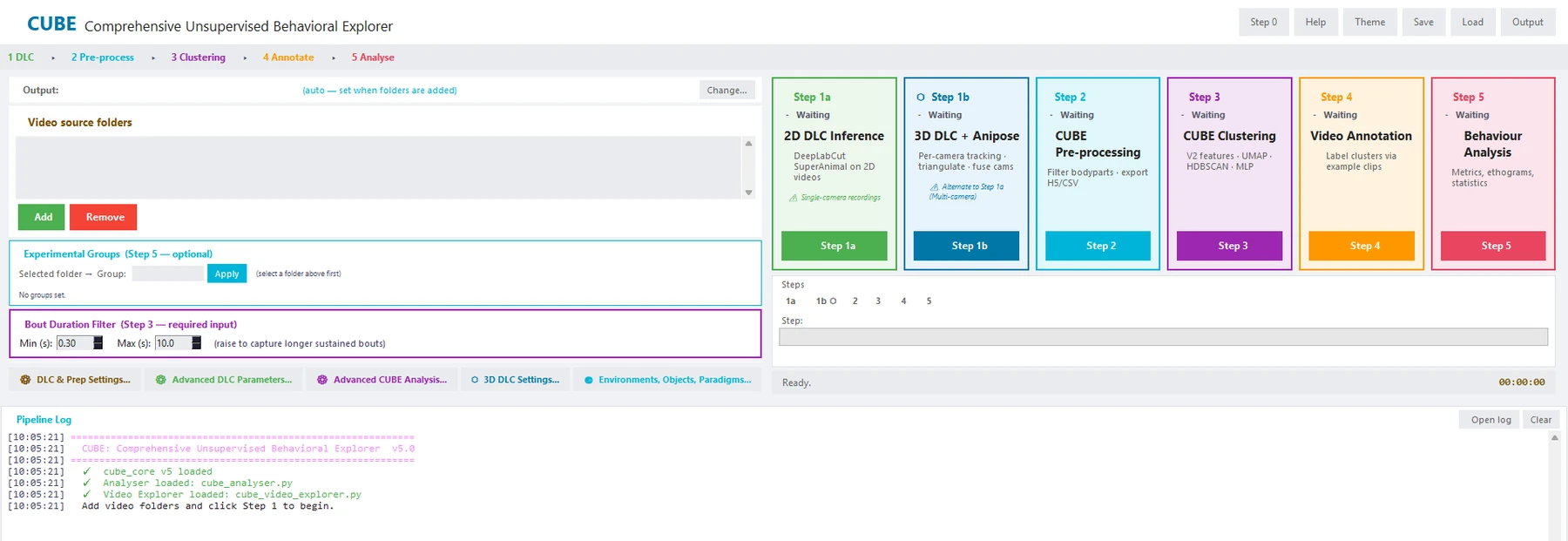
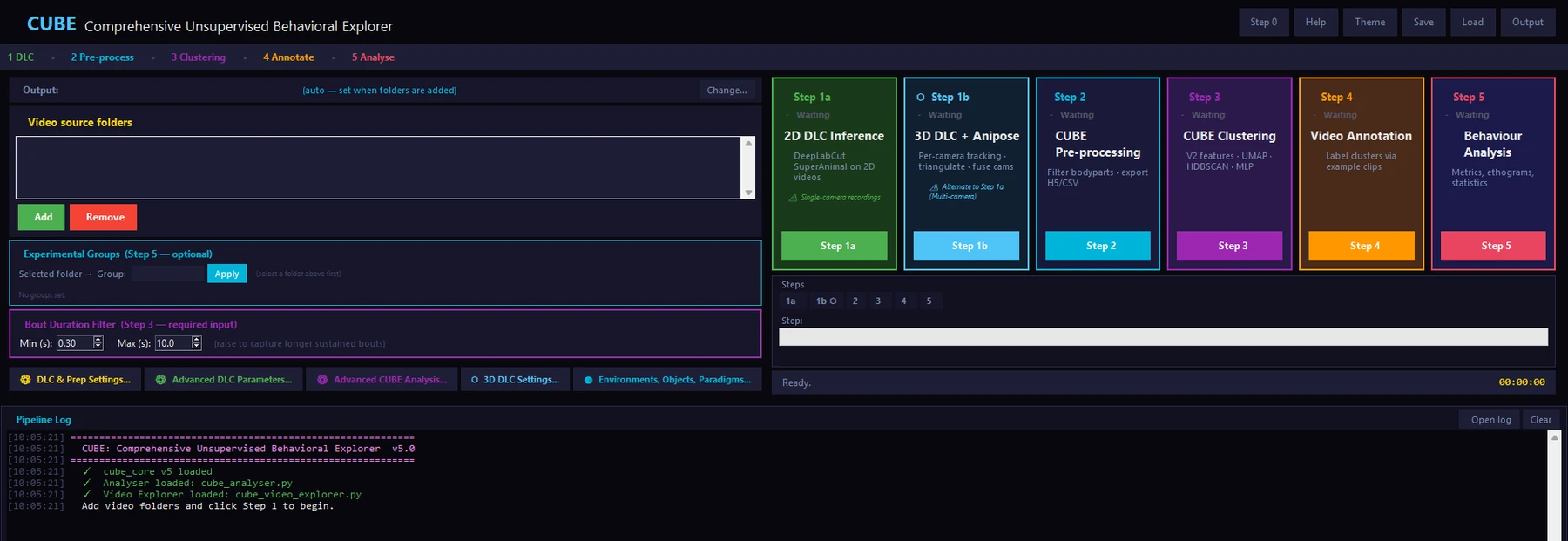
Two steps also run as standalone tools: Launch Analyser.bat (Behaviour Analyser, Step 5 only) and Launch Video Explorer.bat (Cluster Annotator, Step 4 only).
From a terminal, with the CUBE environment active: python cube.py, python cube_analyser.py, python cube_video_explorer.py.
The Theme button in the main window switches between the light and dark theme.