
This page takes you from a folder of videos to named behaviours and your first figures. Each step links to the full guide, so you can read more only when you need to.
Before you start
- CUBE is installed and launches (see Installation and launching).
- Your videos are in one folder (
.mp4,.avior.mov). Use the same camera position for animals you want to compare. - For pose tracking you need a GPU. If you already have DeepLabCut output files (H5 or CSV), you can skip Step 1.
The ten steps
Launch CUBE
Double-click the CUBE icon on your Desktop (or
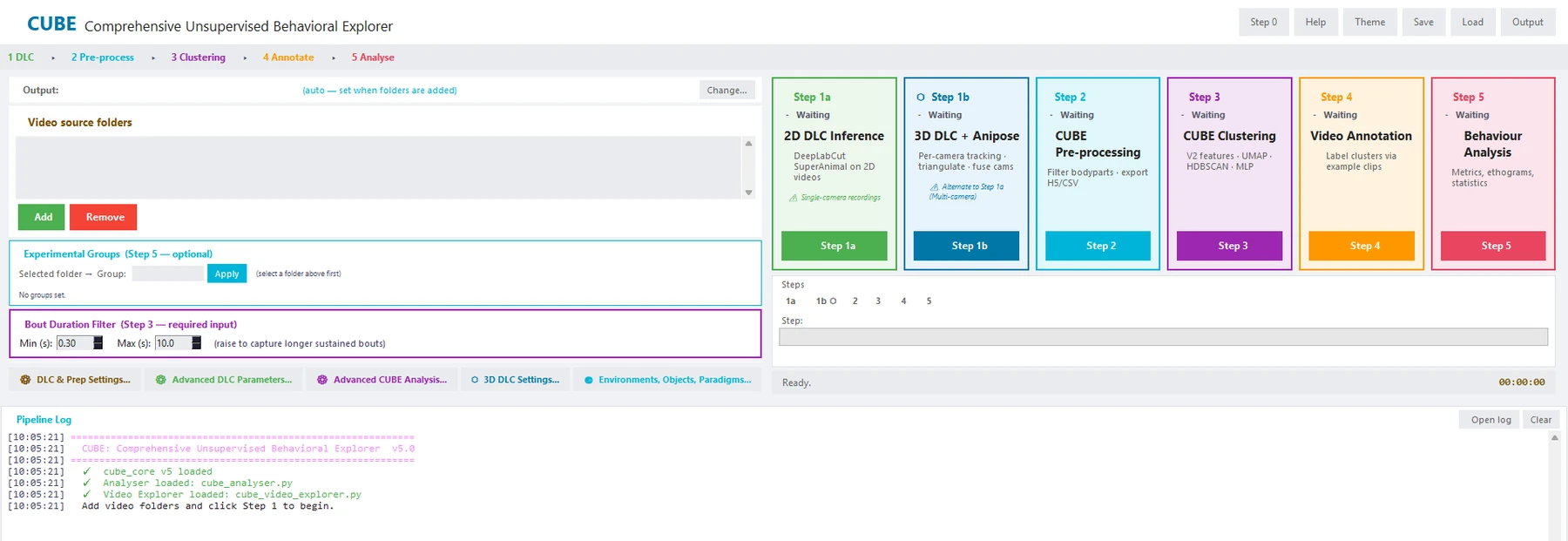
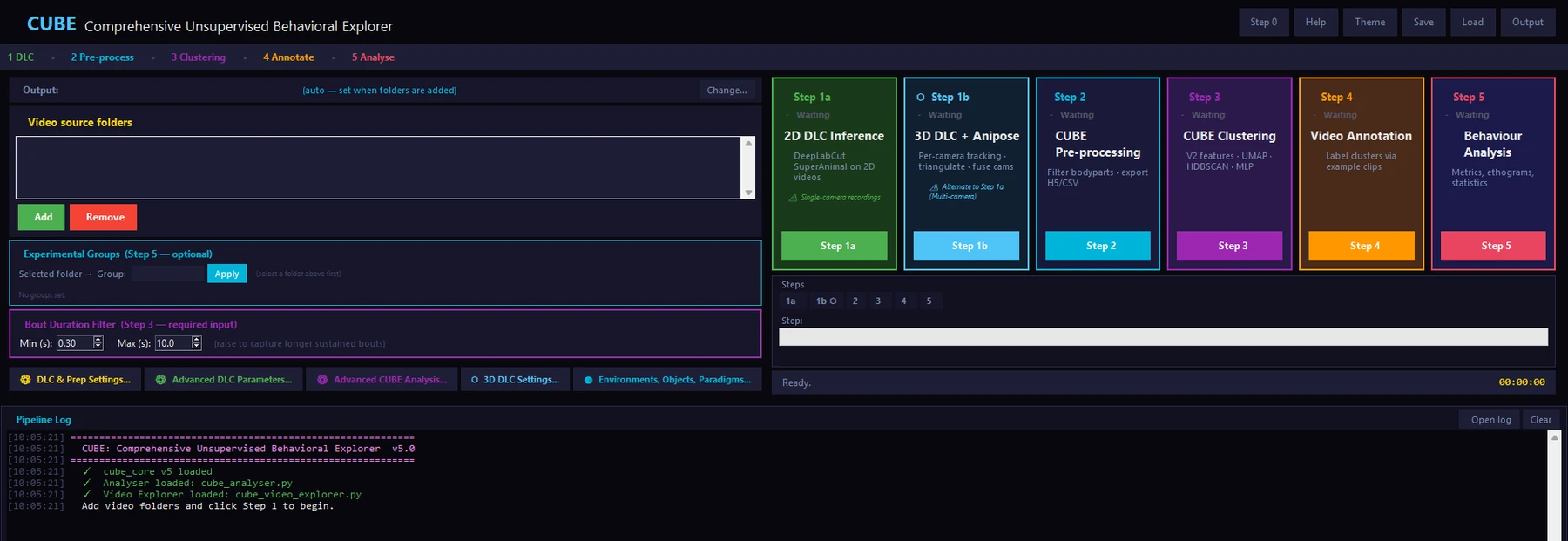
Launch CUBE.bat). The five step cards run left to right: DLC, pre-processing, clustering, annotation and analysis.Add your video folders
Click Add under Video source folders and choose the folder with your videos. CUBE chooses an output folder for you automatically; use Change only if you want it somewhere else.
Optional: group your animals
If you will compare groups in Step 5, select a folder, type a group name and click Apply. You can also do this later in the analyser.
Check the settings
The defaults suit most datasets. Open DLC & Prep Settings only to set the recording frame rate or the minimum confidence for body points. The Bout Duration Filter (default 0.30 to 10 s) removes very brief or very long bouts before clustering.
Step 1: track body points
Click Step 1a for ordinary single-camera video, or Step 1b for a calibrated multi-camera rig. CUBE runs DeepLabCut and writes one filtered keypoint file per video. More on Step 1.
Step 2: pre-process
Click Step 2. CUBE checks the tracking quality and keeps the well-tracked body points. More on Step 2.
Step 3: discover behaviours
Click Step 3. CUBE extracts features, embeds them with UMAP, finds clusters with HDBSCAN, trains a classifier and smooths with a hidden Markov model. This takes tens of minutes for a typical dataset, and longer for large ones. More on Step 3.
Step 4: name the clusters
Click Step 4. Watch the example clips for each cluster and give it a name. Use the keys 1 to 9 to assign a behaviour, I to ignore a cluster and Ctrl+S to save. More on Step 4.
Step 5: analyse
Click Step 5 to open the analyser on your output folder: ethograms, behaviour statistics, transitions and group comparisons. More on Step 5.
Export your figures
Save figures and tables from the analyser. By default they go into the
CUBE 5 - Final Datafolder of your run. All results of one run live in a single timestampedCUBE resultsfolder, so nothing is scattered.
CUBE autosaves your session after every step. If you close it, click Load and choose the session file to continue where you stopped (see Autosave and loading).
If something goes wrong
- No clusters found, or odd results: see Troubleshooting.
- Step 1 fails or says pose tracking is not set up: choose Help → System check. If DeepLabCut or PyTorch is missing, double-click
install_cube.batagain; it repairs the installation. - The analyser shows no animals: choose the output folder that contains
bout_lengths/. - Still stuck? Open an issue on GitHub with the log from the Pipeline Log panel.